Bulk bill claim workflow (BBSW)
Praxi is completing Services Australia conformance testing for Medicare Online Claiming. Production claiming becomes available once Services Australia grants the Notice of Integration (NOI). This page describes how the workflow operates so your practice can prepare; we will update it when certification completes.
This guide walks practitioners and reception staff through every step of the bulk bill claim lifecycle in Praxi — from pre-claim verification to receiving payment from Services Australia. It covers the Bulk Bill Store-and-Forward (BBSW) channel of Medicare Online Claiming.
Before claiming, confirm Medicare setup is finished. You can use Praxi's PRODA, your own PRODA or Tyro.
1. Overview
What is BBSW?
Bulk Bill Store-and-Forward (BBSW) is the Services Australia channel used when the practitioner accepts the Medicare benefit as full payment for the service. The patient pays nothing out of pocket and Medicare deposits the rebate directly into the practice's nominated bank account.
BBSW is a store-and-forward channel, meaning:
- Praxi submits the claim and Services Australia returns an immediate acknowledgement (the claim is on file)
- The actual assessment happens later, in batch
- Results arrive via processing reports (BPRW) — typically minutes to hours after submission
- Payment is confirmed via payment reports (BPYW) once funds are deposited
This is the most common channel for psychology practices that bulk bill concession card holders, under-16s, and pension recipients.
Key Services Australia terms
| Term | Meaning |
|---|---|
| BBSW | Bulk Bill Store-and-Forward — the claim submission channel |
| BPRW | Bulk Bill Processing Report — assessment results returned by SA |
| BPYW | Bulk Bill Payment Report — confirms benefit deposited to bank account |
| DB4 | Assignment of Benefit consent — required before any bulk bill claim |
| DB4E | Electronic DB4 consent text required by Health Insurance Act 1973 s.20A |
| OPVW | Online Patient Verification Workflow — confirms patient eligibility before claim |
| MCOL | Medicare Claiming Online — the integrated REST/JSON gateway Praxi uses |
| MBS | Medicare Benefits Schedule — the catalogue of item numbers, descriptions, schedule fees |
When to use bulk billing
Bulk billing is appropriate when:
- The patient holds a Health Care Card, Pension Concession Card, or Commonwealth Seniors Health Card
- The patient is under 16 or over 65 and the practitioner chooses to bulk bill
- The practitioner's policy is to bulk bill all clients
- A funding partner (e.g. EAP) has agreed to bulk bill terms
If you intend to charge a gap above the Medicare benefit, use the Patient Claim (PCI) workflow instead.
2. Prerequisites
Before submitting any BBSW claim, confirm these prerequisites are in place at the practice level. If you have not yet completed the integration setup, follow the Medicare Claiming User Guide first.
Finish practice setup
Confirm Medicare setup is finished for the provider and location. You do not need your own PRODA account or device when claiming through Praxi's PRODA or Tyro.
Practitioner-level checklist
- The practitioner has a valid Medicare provider number with the correct location-specific stem for the practice where the service is rendered
- For Better Access (psychology) claims, the practitioner is registered in the appropriate AHPRA endorsement category for the MBS items being claimed
- The practitioner's profile in Settings > Team > [Practitioner] matches their AHPRA registration name exactly
3. Pre-claim checklist
Before clicking Submit Claim, run through this checklist on the appointment, the client record, and the invoice.
Patient verification (OPVW)
Praxi performs a pre-claim Medicare verification (OPVW) and hard-blocks submission if the verification is older than 24 hours. The Patient Verification card surfaces this check on the claim panel so you can run it before clicking submit.
- Open the appointment or invoice
- Click Submit Medicare Claim to open the claim panel
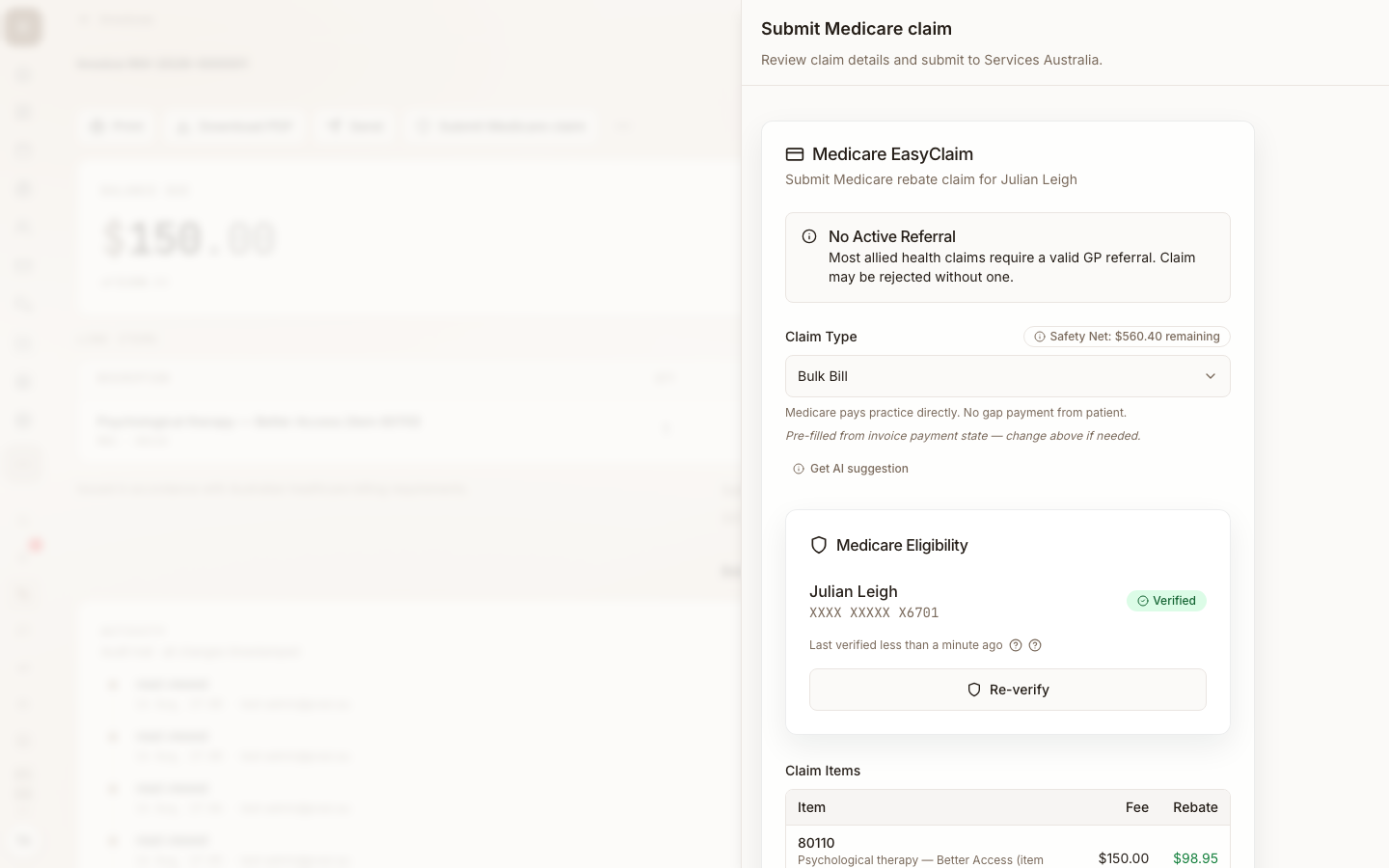
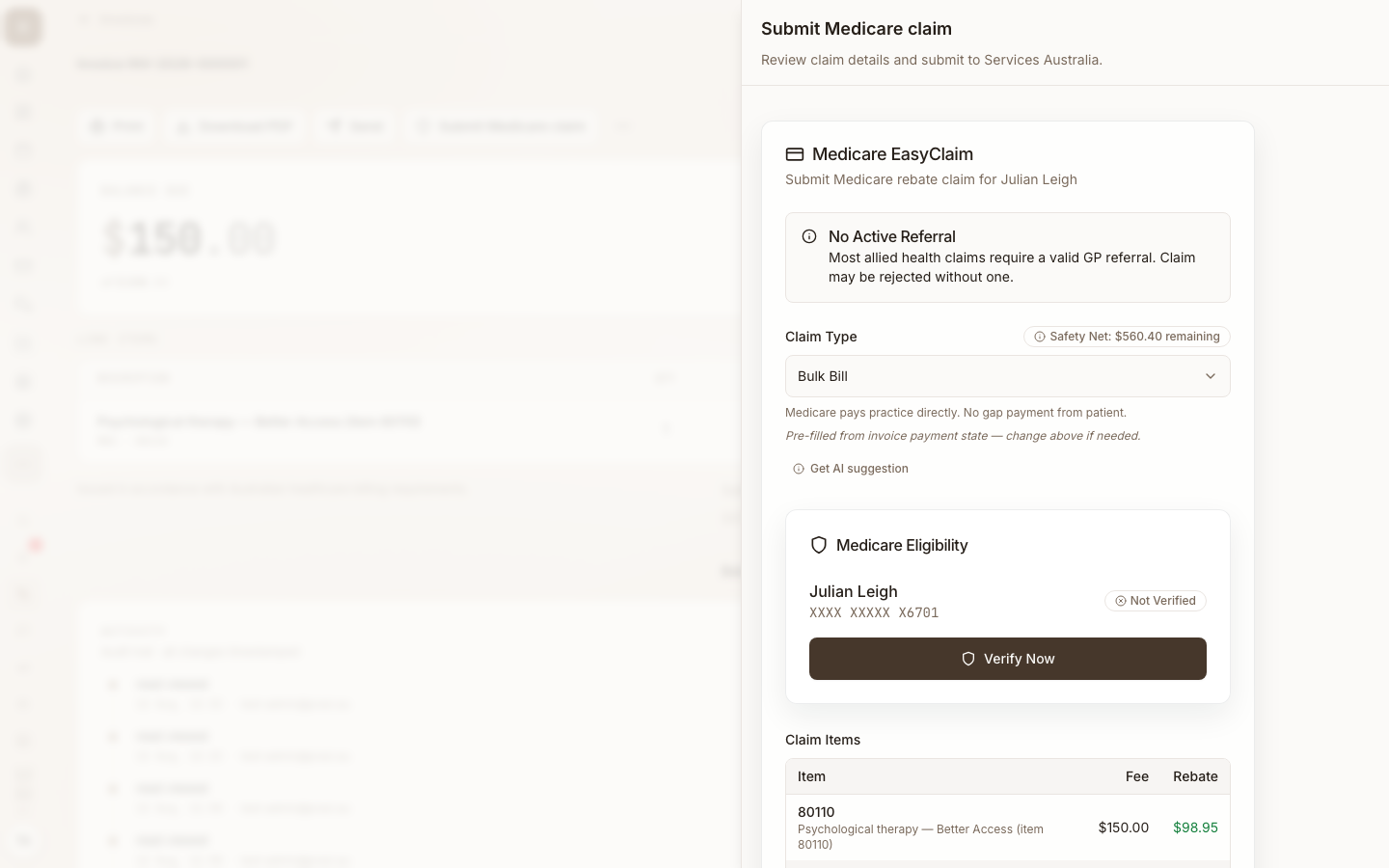
- The Medicare Eligibility card shows the verification status:
- Verified (green) — recent successful OPVW within the last 24 hours
- Expired (amber) — last verification is older than 24 hours
- Not Verified (grey) — never verified in Praxi
- Click Verify Now to run a fresh OPVW. The result returns within seconds
- If verification reveals a difference (e.g. Medicare card details have changed), click Apply suggested updates and review each field
If verification fails — Medicare card expired, IRN incorrect, name mismatch — you cannot submit the claim. Common causes and fixes are listed in Medicare Claiming Errors.
MBS item eligibility
Confirm the MBS item number on the invoice is appropriate for the service provided. Common psychology mistakes:
| Mistake | Resolution |
|---|---|
| Using a registered psychologist item (e.g. 80000) for a clinical | Verify the practitioner's AHPRA endorsement before assigning Better Access items 80000–80020 (registered) vs 80100–80128 (clinical) |
| Mixing 50-min and shorter session item numbers | Duration thresholds are exact — check MBS Online for the minimum duration for each item. Match the actual session length, not booked |
| Telehealth vs in-person item swap | Telehealth items have separate codes — check MBS Online for the current telehealth attendance number for your profession |
| Group therapy as individual | Group items 80020/80120 require ≥6 patients in the session and a different consent flow |
If unsure, look up the item on MBS Online before submitting.
Referral check
Better Access psychology claims require a valid GP referral (Mental Health Treatment Plan). Praxi displays a referral warning on the claim panel if no referral is on file or the referral has expired.
- Check Client > Referrals for an active GP referral
- The referral must include: referring GP's provider number, referral date, number of sessions allocated
- If the referral is missing or expired, add it to the client record before submitting (you can capture it during the appointment if the client brings the form in)
Submitting a Better Access bulk bill claim without a valid referral can trigger Services Australia debt recovery. Praxi displays a warning, but ultimately the practitioner is responsible for verifying the referral.
Age and session limits
Praxi auto-checks two compliance constraints before allowing the claim:
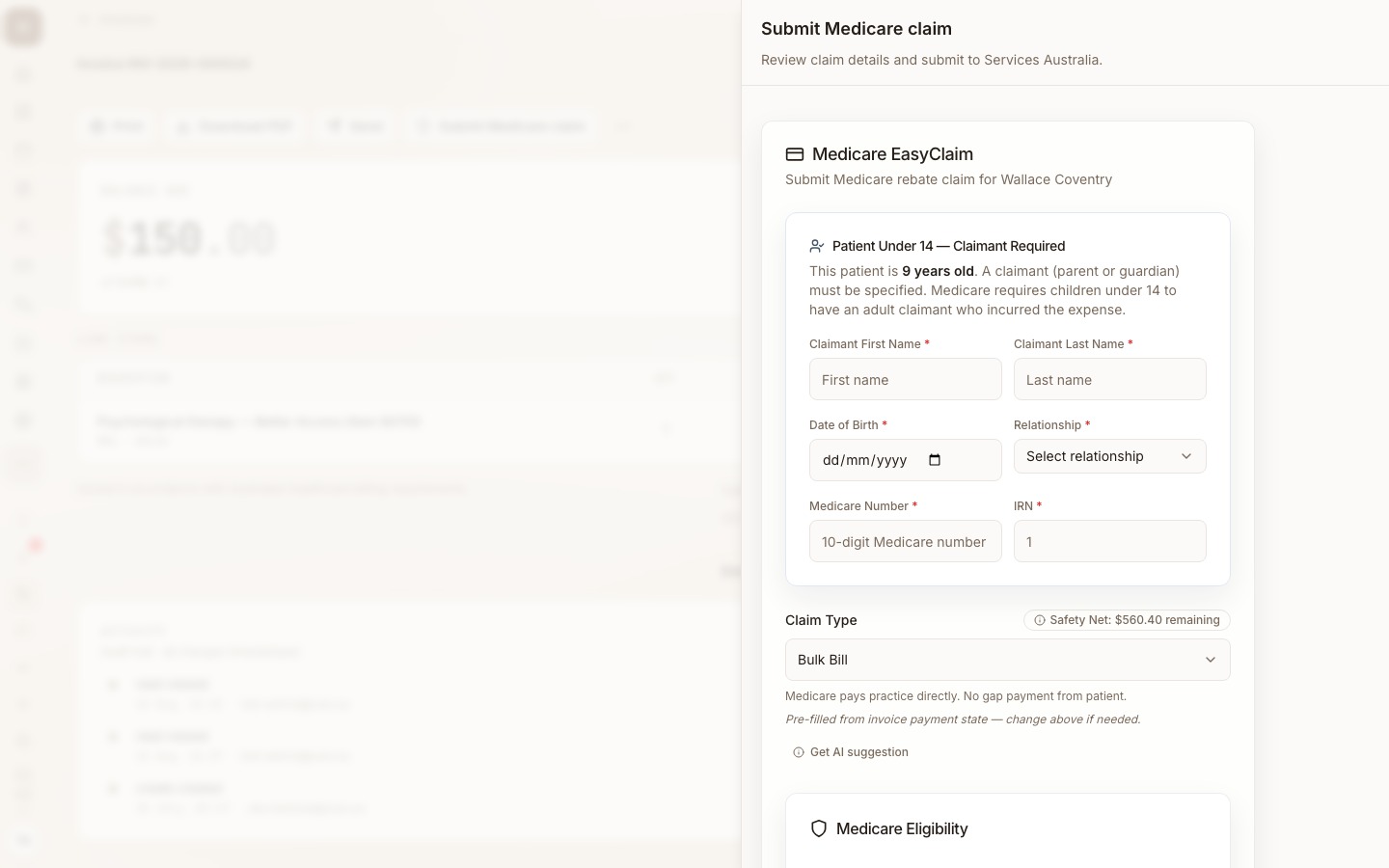
- Patients under 14 require a claimant (parent, guardian, or carer) per Health Insurance Act 1973. The claim panel surfaces a "Patient Under 14 — Claimant Required" card requesting the claimant's name, date of birth, relationship, Medicare number, and IRN.
- Better Access session limits — 10 individual sessions per calendar year. Praxi tracks the count and blocks submissions once the limit is reached. Practice owners and managers may apply a documented override if exceptional circumstances apply (e.g. natural disaster provisions).
4. Submitting the claim
Step-by-step
- Open the appointment or invoice
- Click Submit Medicare Claim — the claim panel opens
- In Claim Type, select Bulk Bill
- Confirm the patient verification status is Verified
- Confirm the items table reflects the correct MBS item number, schedule fee and rebate amount
- Capture DB4 consent (see below)
- Click Submit Claim
- Wait for the result — the panel updates to show "Medicare Claim Submitted" with the SA claim reference and a Pending Review badge
DB4 consent capture
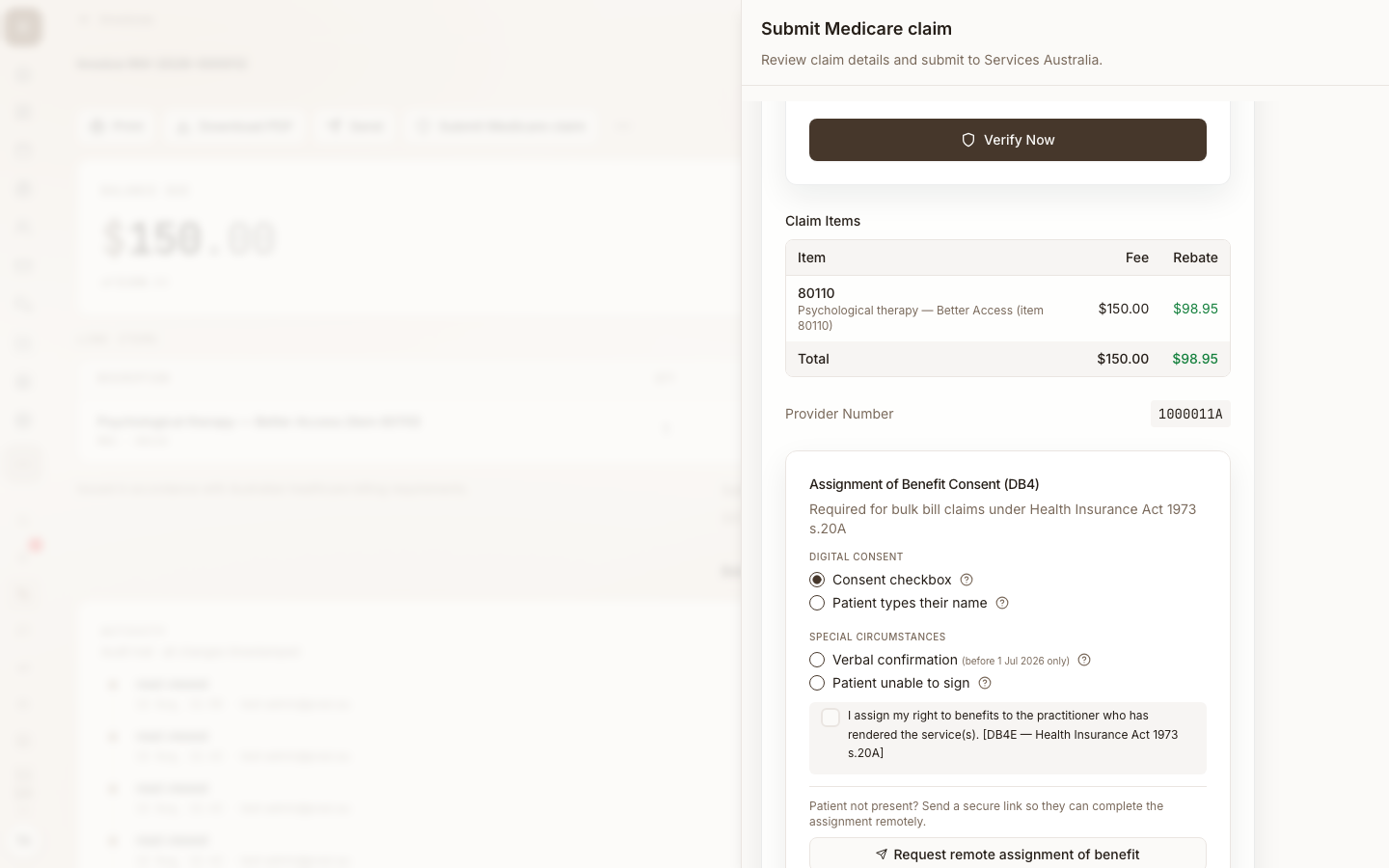
Before any bulk bill claim, the patient must consent to assigning their Medicare benefit to the practice. Praxi enforces this with a hard backend block — you cannot submit a bulk bill claim without recorded consent.
The DB4E consent statement is prescribed by Health Insurance Act 1973 s.20A:
"I assign my right to benefits to the practitioner who has rendered the service(s)."
Praxi supports four consent capture methods:
| Method | When to use | What Praxi records |
|---|---|---|
| Consent checkbox | Default — patient ticks the on-screen DB4E box | Method, timestamp, captured by user, the prescribed consent text |
| Patient types name | Tablet, kiosk, or telehealth where typing is easier | The typed name (must match patient on file), method, timestamp |
| Verbal confirmation | Temporary SA transition through 30 June 2027 — when paper/electronic agreement is not available | Practitioner attestation + record; prefer digital/paper. Blocked for services on/after 1 July 2027 |
| Patient unable to sign | Minor, cognitive impairment, physical disability | Name and relationship of proxy assignor (parent/guardian/carer) — SA “is assignor the patient?” |
Services Australia public education (updated 16 July 2026) provides a 12-month transition from 1 July 2026 during which verbal assignment of benefit remains available for bulk-billed services when physical/electronic agreement cannot be obtained. Record the agreement, use the assignor wording SA requires, and send the completed form electronically to the patient. Prefer on-screen checkbox, typed name, I accept, or paper. From 1 July 2027, Praxi rejects verbal capture for that service date.
Official page: Assignment of benefit for bulk bill claims.
If the patient is unable to sign:
- The substitute signatory must not be the treating practitioner, their staff, or the facility proprietor
- Acceptable signatories: parent, guardian, carer, holder of an enduring power of attorney
- Praxi requires both the substitute signatory's full name and their relationship to the patient
Once consent is captured, Praxi:
- Stores the DB4E consent record with a 2-year retention period (SA requirement)
- Skips the consent step on subsequent claims for the same client on the same service date
- Generates a consent receipt PDF on demand if the patient requests a copy (Health Insurance Act s.20A right to access)
Claim type selection
For a bulk bill claim, leave Claim Type set to Bulk Bill. The other two options apply when the patient pays:
- Fully Paid — patient paid the full fee at the time of service; rebate goes to the patient's bank account
- Part Paid — patient paid a portion of the fee; rebate goes to the patient's bank account; balance becomes a gap
Both Fully Paid and Part Paid are PCI claims — see the PCI workflow guide.
Validation errors
Praxi runs client-side validation before sending the claim. Errors block submission until resolved:
- Medicare details required — client record is missing Medicare number, IRN, or date of birth
- Bank details required — only for Fully Paid / Part Paid claims (BSB + account number + account name)
- Consent required — DB4 consent has not been captured for this claim
- Claimant required — patient is under 14 and claimant fields are empty
- Verification expired — OPVW is older than 24 hours, run Verify Now
- Session limit reached — under Better Access; a practice owner may override with a documented reason
If the backend rejects the claim after submission (e.g. SA returns an error verbatim), Praxi displays the SA error message on the claim panel without modification. This matches the NOI requirement to surface SA errors exactly as received.
Assignment of benefit changes from 1 july 2026
From 1 July 2026, SA’s bulk-bill assignment of benefit process requires a completed assignment agreement (electronic or paper), before or after the service, with record keeping. There is no Services Australia form version called “DB4 v2.1.4” — use SA’s published task page and templates.
Key product fields:
| Area | Behaviour |
|---|---|
| Digital capture | Tick box / typed name / I accept with s.20A assignment text |
| Proxy assignor | “Is the assignor the patient?” — if No, proxy name + relationship |
| Verbal (temporary) | Allowed under SA transition through 30 June 2027; blocked from 1 July 2027 |
| Item change after reject | Re-capture consent when the MBS item on a rejected service changes |
| Retention | Consent artefacts retained 2 years |
News: New AoB consent requirements from 1 July 2026.
For carers/parents consenting on behalf of a child or adult lacking capacity, the assignor name and relationship are captured on the digital sheet and recorded against the consent record. The practitioner is the legal record- holder of the relationship attestation; Praxi does not independently verify the proxy's authority.
5. After submission
Initial response
For BBSW, the immediate response is an acknowledgement only. Praxi records
the claim with status Pending Review (PEND) and a Services Australia claim
reference. No benefit amount or assessment outcome is returned at this point —
that arrives via processing reports.
BPRW — processing report polling
Praxi polls Services Australia for processing reports automatically:
| Cadence | Trigger |
|---|---|
| Every 15 minutes | Background polling job for organisations with active claims |
| On status query | Opening a specific claim refreshes its status |
When a BPRW arrives, Praxi updates each claim's status to one of:
| Status | Meaning | Next step |
|---|---|---|
| Assessed | SA has accepted the claim. Benefit amount is now populated. Payment queued. | None — wait for BPYW |
| Rejected | SA has refused the claim. A reason code is attached. | Review the rejection, fix the issue, resubmit |
| Paid | Payment has been deposited (this status follows BPYW for completed claims) | Reconcile against your bank statement |
Processing typically takes from a few minutes to several hours depending on SA load. Claims submitted late on Friday may not be assessed until Monday.
BPYW — payment report
When SA deposits the bulk bill payment to your nominated bank account, a BPYW report confirms:
- Payment date and amount
- Individual claims included in the payment
- Adjustments (e.g. fee changes since submission, recovery offsets)
View payment reports at Medicare payment report. The amount in the BPYW should match the corresponding deposit on your practice bank statement.
Status flow summary
Submitted → Pending Review → Assessed → Paid
                          ↘ Rejected → (resubmit)
Submitted a bulk-bill claim in error?
Same-day delete is only available for patient claims (PCI) — bulk-bill claims cannot be deleted this way. For a BBSW claim submitted in error, contact Services Australia Provider Enquiries on 132 150 to arrange an adjustment.
6. Troubleshooting
Resolve a rejection
Read the returned Services Australia message on the claim. Follow Medicare claiming errors for guidance before correcting and resubmitting.
How to resubmit
When SA rejects a claim, Praxi creates a new claim record on resubmission so the original is preserved for audit. To resubmit:
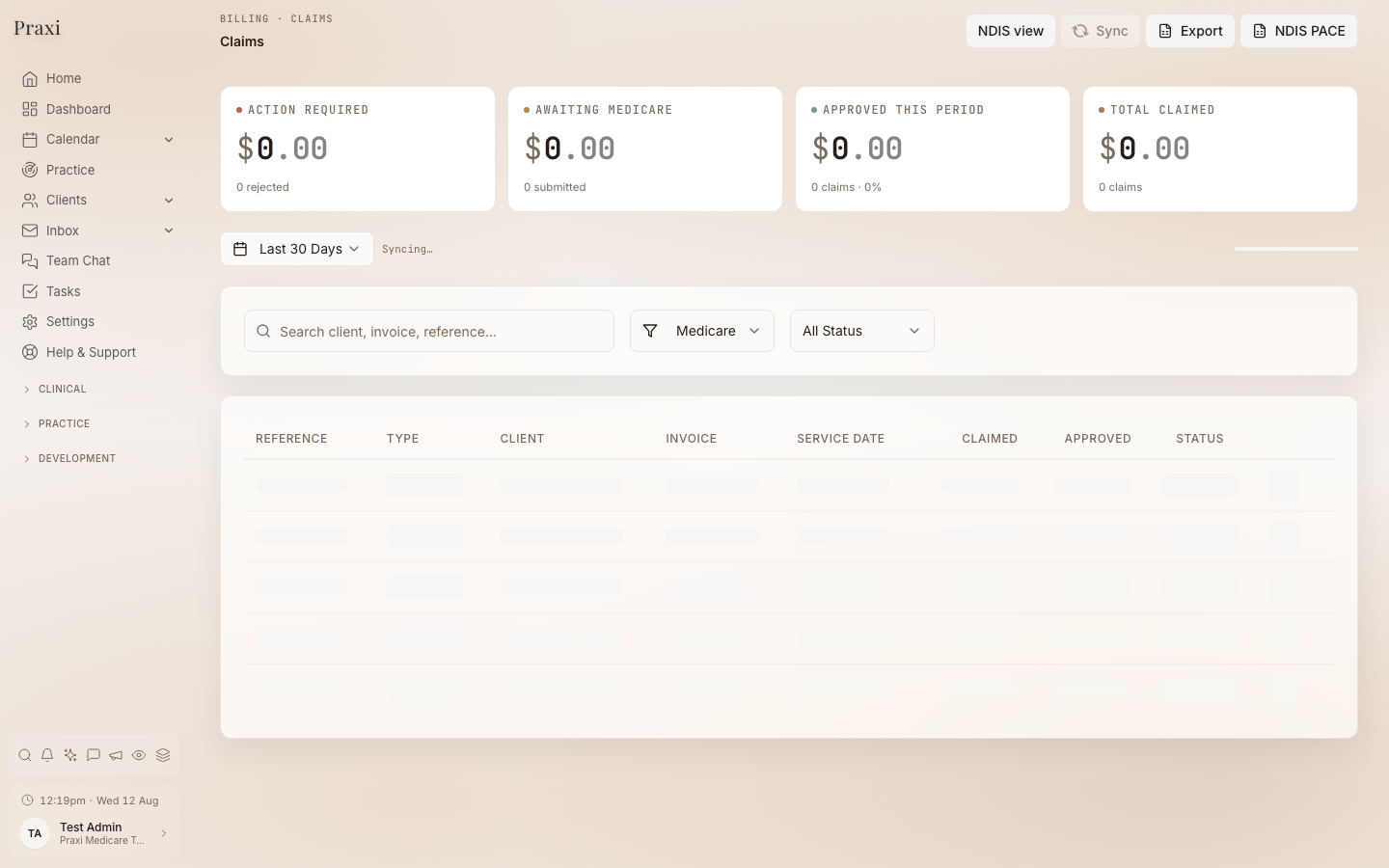
- Open the rejected claim from Finance > Claims
- Read the rejection reason and the suggested fix
- Click Resubmit Claim
- Correct the offending field (Medicare number, item number, referral, etc.)
- Click Submit to create a new claim
- The new claim is linked to the original via the resubmission lineage so the audit trail is intact
Only claims with status Rejected (REJ), Not a Claim (NAC), or No
Bulk Bill (NOBB) can be resubmitted. Already-paid or already-pending claims
must be cancelled first.
When to call Services Australia
Contact Provider Enquiries (132 150, Monday-Friday 8:00am-5:00pm) if:
- The same rejection persists after fixing the field SA flagged
- The rejection reason doesn't match the claim details
- A gateway or connection error persists across multiple retries
- The PRODA device is locked — only SA can unlock it
- You need to dispute an assessment
For PRODA-specific issues, the Health Professional line is 1800 700 199.
Related resources
- Medicare Claiming — the core claiming reference
- Medicare Setup — connecting Praxi to Medicare
- Medicare Claiming User Guide — Setup, prerequisites, full claiming overview
- Patient Claim Workflow (PCI) — When the patient pays a gap
- DVA Claim Workflow — Veterans claiming
- Medicare Error Codes — Full rejection code reference
- Medicare Troubleshooting — General troubleshooting FAQ
- PRODA Setup — PRODA B2B device configuration
This guide reflects Services Australia's TECH.SIS.MEDICARE.02 (BBSW) specification. Policies and procedures change — refer to the Services Australia website for the latest.