Workflows Overview
Automate repetitive tasks, streamline patient journeys, and ensure consistent processes with Praxi's visual workflow builder.
What Are Workflows?
Workflows are automated sequences of actions that run when specific events occur. They help you:
| Benefit | Example |
|---|---|
| Save time | Auto-send appointment reminders |
| Reduce errors | Standardise intake processes |
| Improve consistency | Ensure every client gets follow-up |
| Scale operations | Handle growth without more staff |
Workflow Components
Node Types
| Node | Purpose | Example |
|---|---|---|
| Trigger | Starts the workflow | Appointment booked |
| Action | Performs an operation | Send email |
| Agent | AI-powered decision/task | Draft follow-up note |
| Approval | Requires human approval | Manager sign-off |
| Condition | Branch based on criteria | If client is new |
| Router | Multi-path branching | Route by funding source |
| Delay | Wait before continuing | Wait 24 hours |
| Loop | Repeat for a collection of items | For each appointment |
| Fork / Join | Run branches in parallel | Send SMS and email simultaneously |
| Entity Selector | Select entities to process | Choose clients matching criteria |
| Notification | Send targeted notification | Alert supervisor |
| Form | Send a form and wait for response | Request intake details |
| Document Generate | Create a document from a template | Generate GP referral letter |
| End | Terminates workflow | Complete |
Visual Builder
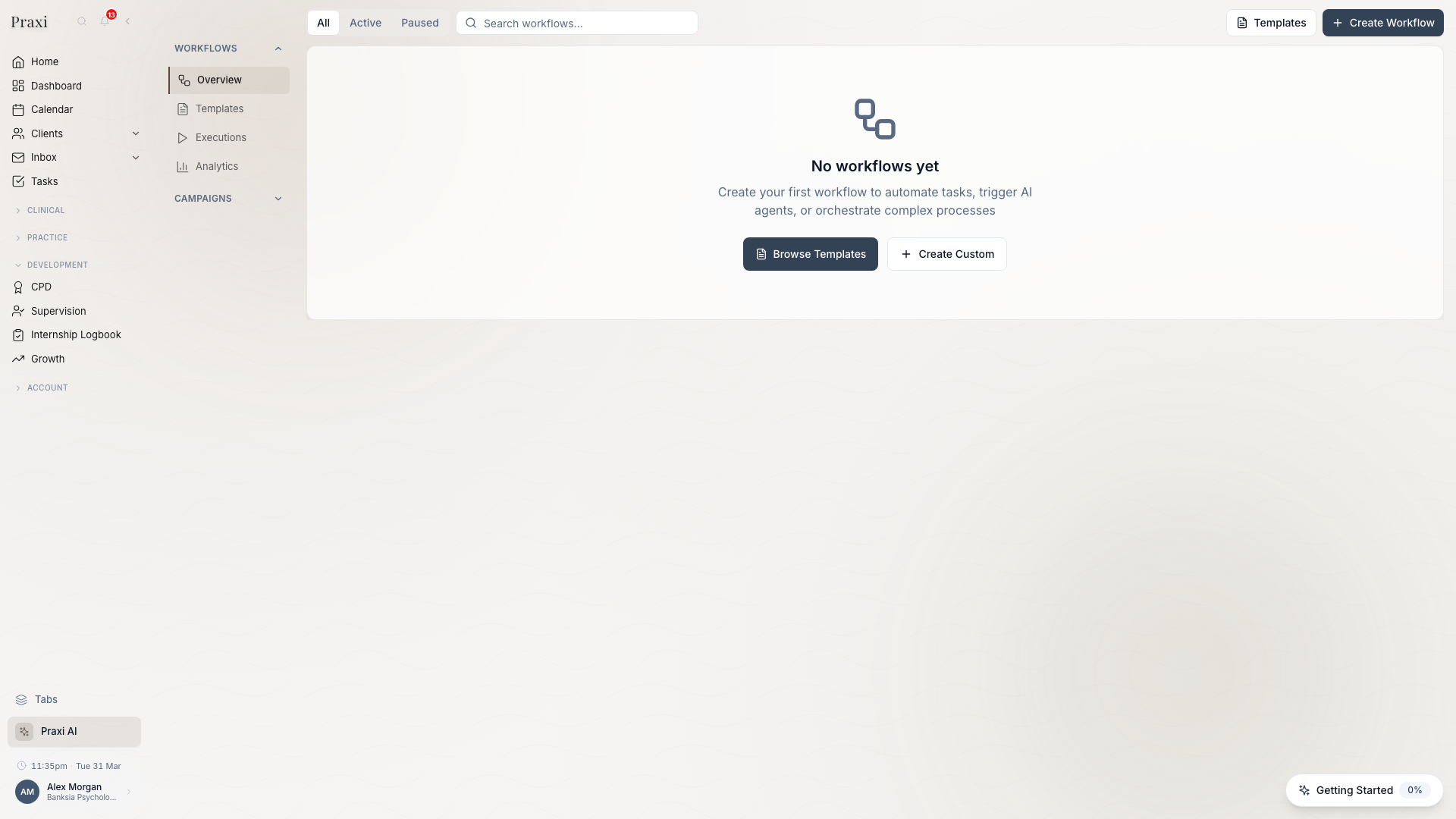
The drag-and-drop builder lets you:
- Add nodes from the palette
- Connect nodes with arrows
- Configure each node's settings
- Preview workflow logic
- Test before activating
Common Workflow Examples
Appointment Reminders
Trigger: Appointment created
  ↓
Delay: Wait until 24 hours before
  ↓
Action: Send SMS reminder
  ↓
Condition: Client confirmed?
  ↓ Yes              ↓ No
End              Action: Send follow-up SMS
New Client Intake
Trigger: Client created
  ↓
Action: Send welcome email
  ↓
Action: Assign intake forms
  ↓
Delay: Wait 48 hours
  ↓
Condition: Forms completed?
  ↓ Yes              ↓ No
End              Action: Send reminder
Invoice Follow-Up
Trigger: Invoice overdue
  ↓
Action: Send payment reminder
  ↓
Delay: Wait 7 days
  ↓
Condition: Still unpaid?
  ↓ Yes              ↓ No
Action: Escalate      End
Unsigned Notes Alert
Trigger: Schedule (daily at 9am)
  ↓
Loop: For each unsigned note > 24h
  ↓
Action: Send reminder to practitioner
  ↓
End loop
Workflow Categories
Workflows are organised into categories to keep your list manageable:
| Category | Examples |
|---|---|
| Client Management | Welcome sequences, consent expiry, inactive re-engagement |
| Appointments | Reminders, no-show follow-up, telehealth checks, recurring books |
| Billing | Auto-invoicing, payment reminders, Medicare bulk billing |
| Clinical | Note signing, risk escalation, MHCP tracking, assessment follow-up |
| Communications | Birthday messages, recall campaigns, feedback requests |
| MHCP Compliance | Session tracking, plan expiry, limit warnings |
| Tasks | Task creation, assignment, completion workflows |
| Administrative | Credential checks, document retention, daily summaries |
Getting Started
Creating Your First Workflow
- Go to Workflows in the Practice section of the sidebar
- Click Create Workflow
- Choose a template or start blank
- Add your trigger
- Add actions and conditions
- Test the workflow
- Activate when ready
Using Templates
Praxi includes a large library of pre-built templates across clinical, billing, communication, and administrative categories. Some commonly used templates include:
| Template | Description |
|---|---|
| Appointment Reminder Sequence | SMS and email before sessions |
| New Client Welcome Sequence | Email, intake forms, and scheduling prompt |
| Invoice Overdue Escalation | Multi-step payment reminder sequence |
| Unsigned Notes Reminder | Daily AHPRA compliance check |
| Client Birthday Greeting | Annual client message |
| MHCP Session Tracking | Monitor Mental Health Care Plan sessions |
| Post-Session Note Reminder | Prompt practitioners to complete notes |
| No-Show Follow-up | Automatic follow-up after missed sessions |
To use a template:
- Go to Workflows → Templates
- Browse available templates by category
- Click Use Template
- Customise as needed
- Activate
AI Co-builder (Pro and Enterprise)
Prefer to describe your automation in plain English? The AI Co-builder lets you type what you want the workflow to do and receive a complete proposal — trigger, steps, and connections — ready to review and apply to the canvas. The AI never saves or activates anything; you stay in control throughout.
Workflow Limits
By Plan
What you can do with workflows depends on your subscription tier:
| Capability | Essentials | Pro | Enterprise |
|---|---|---|---|
| View & enable workflows | Yes | Yes | Yes |
| Adjust workflow variables | Yes | Yes | Yes |
| Clone & edit workflows | No | Yes | Yes |
| Create custom workflows | No | Yes | Yes |
| Delete workflows | No | No | Yes |
Execution Limits
| Limit | Value | Reason |
|---|---|---|
| Max nodes | 100 per workflow | Performance |
| Max depth | 50 levels | Complexity |
| Delay maximum | Weeks (no hard cap) | Practical limit |
| Loop iterations | 1,000 per loop | Prevent runaway |
| Workflow timeout | 5 minutes | Resource management |
Monitoring Workflows
Execution History
View past executions:
- Go to Workflows, open the workflow, then select History
- See all executions with status
- Click to view execution details
- Review each node's result
Execution Status
| Status | Meaning |
|---|---|
| Pending | Queued and waiting to start |
| Running | Currently executing |
| Paused | Waiting at a delay, approval, or form node |
| Completed | Finished successfully |
| Failed | Error occurred |
| Cancelled | Manually stopped |
Error Handling
Praxi includes automatic retry and circuit breaker protection. When a node fails, the system retries up to 3 times with increasing delays (exponential backoff). If a service continues to fail, the circuit breaker stops sending requests to allow it to recover.
When workflows fail:
- Check execution history for error details
- Review the failed node's configuration
- Check input data validity
- Verify external service availability
- Fix and retry if needed
AI Agent Triggers
Workflows can be triggered by AI agents, but this is disabled by default for safety. When enabled, AI-triggered workflows always require human approval before executing (per PsyBA 2025 Code of Conduct).
To allow AI triggers on a workflow:
- Open the workflow in the builder
- Go to Settings
- Enable Allow AI trigger
- Optionally configure which roles can approve AI-triggered executions
AI-suggested clinical actions (such as notes, assessments, or treatment plan changes) always require human approval regardless of the workflow configuration. This cannot be overridden.
Dry Run and Testing
Before activating a workflow, you can run a dry run to simulate execution without making any actual changes:
- Open the workflow in the builder
- Click Test in the toolbar
- Enter sample trigger data
- Click Run Test
- Review the simulated execution step by step -- no emails are sent, no records are created
The dry run shows estimated timing for each node and highlights any potential errors in your configuration.
Best Practices
- Start simple - Begin with 3-5 node workflows
- Test thoroughly - Use dry run mode before activating
- Monitor executions - Review history regularly
- Use descriptive names - "New Client Intake" not "Workflow 1"
- Document purpose - Add notes explaining the workflow
- Set error notifications - Get alerts on failures
- Review monthly - Optimise based on results
Permissions
| Action | Who Can Do This |
|---|---|
| View workflows | Practice owner, practice manager |
| Create/edit workflows | Practice owner |
| Activate workflows | Practice owner |
| View execution history | Practice owner, practice manager |
| Delete workflows | Practice owner |
| View workflow analytics | Practice owner, practice manager |
Troubleshooting
Workflow Not Triggering
- Verify workflow is active (not paused)
- Check trigger conditions match event
- Verify user has required permissions
- Review execution history for errors
- Check workflow limits not exceeded
Actions Not Executing
- Check condition logic is correct
- Verify action configuration complete
- Check external service credentials
- Review error messages in history
Performance Issues
- Reduce workflow complexity
- Avoid unnecessary delays
- Limit loop iterations
- Consider splitting into multiple workflows