Waitlist Management
Learn how to manage the waitlist effectively, match clients to available slots, and fill cancellations quickly.
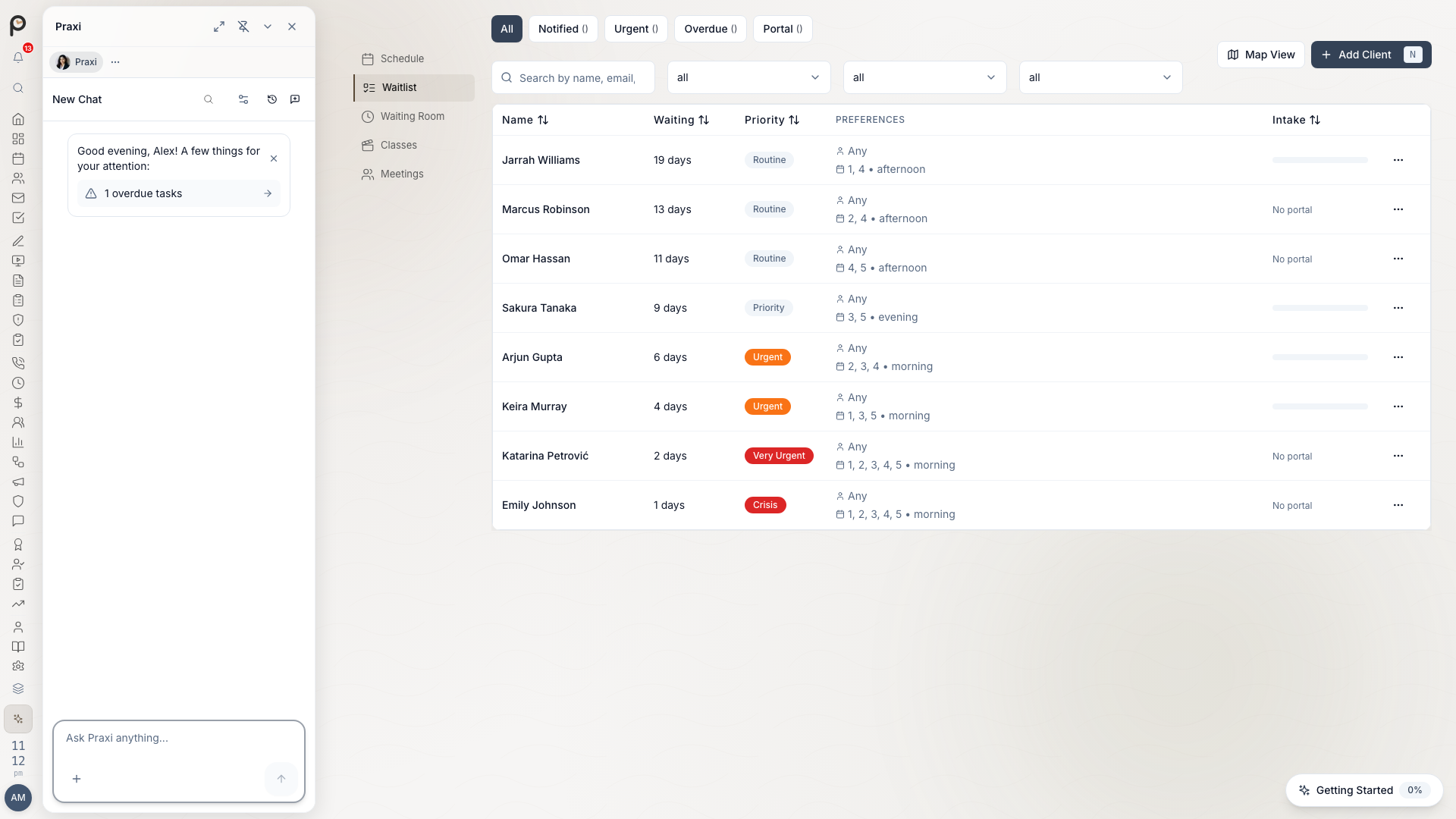
Overview
The waitlist helps you:
| Function | Benefit |
|---|---|
| Track waiting clients | Know who is waiting |
| Fill cancellations | Minimise lost revenue |
| Prioritise appropriately | Urgent cases first |
| Automate notifications | Save time contacting clients |
Accessing the Waitlist
From Navigation
- Go to Calendar → Waitlist
- Or press Cmd/Ctrl + K and type "waitlist"
From Appointments
When cancelling:
- Cancel the appointment
- Prompt appears: "Check waitlist?"
- Click to see matching clients
Adding Clients to Waitlist
During Booking Attempt
When no suitable time available:
- Attempt to book
- No availability shown
- Click Add to Waitlist
- Confirm preferences
- Client receives confirmation
Manual Addition
For phone enquiries:
- Go to Waitlist → Add Client
- Search or create client
- Set their preferences
- Save to waitlist
From Client Profile
- Open client profile
- Click Add to Waitlist
- Set preferences
- Confirm
Waitlist Preferences
Practitioner Preference
| Option | Meaning |
|---|---|
| Specific practitioner | Only this person |
| Any available | Flexible on practitioner |
| Preferred, but flexible | Try first, then others |
Time Preferences
| Option | Notes |
|---|---|
| Any time | Maximum flexibility |
| Mornings only | Before 12pm |
| Afternoons only | 12pm-5pm |
| Specific days | Select available days |
| Specific times | Exact windows |
Service Type
Select what they need:
- Initial consultation
- Standard session
- Extended session
- Assessment
- Telehealth OK
Notice Required
How much advance notice:
| Option | Typical Use |
|---|---|
| Same day OK | Very flexible |
| 24 hours | Standard |
| 48 hours | Needs to arrange |
| 1 week | Limited flexibility |
Urgency Levels
Each waitlist entry has an urgency level that determines its priority and maximum wait time.
| Level | Maximum Wait | Examples |
|---|---|---|
| Crisis | 1 day | Immediate clinical need |
| Very Urgent | 7 days | Acute symptoms, high risk |
| Urgent | 14 days | Deteriorating condition |
| Priority | 30 days | Important but stable |
| Routine | 90 days | Standard new client, follow-up |
If a client has a critical risk level, their urgency is automatically escalated to Crisis. Clients with a high risk level are escalated to at least Urgent. This ensures clinical safety is prioritised.
Uniqueness
A client can only have one active waitlist entry per appointment type and practitioner combination. If you try to add a duplicate, you will be prompted to edit the existing entry instead.
Viewing the Waitlist
Waitlist Dashboard
| Column | Information |
|---|---|
| Client | Name and contact |
| Waiting since | Date added |
| Priority | Urgency level |
| Preferences | Practitioner, times |
| Contact | Phone/email |
| Status | Active, offered, etc. |
Filtering
Filter the waitlist by:
- Practitioner preference
- Priority level
- Wait time
- Service type
- Availability preferences
Sorting
Sort by:
- Priority (urgent first)
- Wait time (longest first)
- Date added (newest/oldest)
- Client name
Filling Cancellations
When a Cancellation Occurs
- Appointment cancelled
- System prompts: "Check waitlist?"
- Matching clients shown
- Ordered by priority and fit
Automatic Matching
Praxi uses a scoring algorithm to rank waitlist matches. The algorithm considers:
- Urgency level -- Crisis and very urgent clients are prioritised first
- Risk level -- Clients with higher clinical risk are ranked above others
- Practitioner preference -- Matches to the client's preferred practitioner
- Day and time preferences -- Fits the client's available windows
- Flexibility score -- Higher flexibility scores improve match ranking
- Wait duration -- Clients who have waited longer rank higher (FIFO tiebreaker)
- Therapeutic relationship -- Existing practitioner-client relationships are weighted
Contacting Clients
Option 1: Automatic notification
- Click Offer Slot
- Client receives SMS/email
- They confirm or decline
- Track response
Option 2: Manual call
- Note client's phone number
- Call them
- Offer the slot
- Book if accepted
- Update waitlist status
Client portal offers
Clients with portal access can accept or decline waitlist offers in the portal under Appointments (waitlist offers), without a phone call. Staff still see the same offered / accepted / declined status on the waitlist dashboard. The native Client Portal app surfaces the same offers.
Client Response Tracking
| Status | Meaning |
|---|---|
| Offered | Slot sent, awaiting response |
| Accepted | Client confirmed |
| Declined | Client can't make it |
| Expired | No response in time |
| Booked | Successfully scheduled |
Automation Features
Automatic Notifications
Configure notification preferences from the Waitlist page using the settings panel. Enable auto-notifications, set the notification method (SMS, email), set the response window, and configure follow-up behaviour.
Waitlist Alerts
Get notified when:
- Slot matches waitlist client
- Client responds to offer
- Priority client waiting too long
- Waitlist grows past threshold
Response Timeouts
If client doesn't respond:
- Set timeout period (e.g., 4 hours)
- After timeout, moves to next client
- Original client can still call
Managing the Waitlist
Regular Review
Daily:
- Check urgent priorities
- Review new additions
- Process responses
Weekly:
- Check long waiters
- Update priorities
- Contact stale entries
Contacting Long Waiters
For clients waiting 4+ weeks:
- Call to check in
- Confirm still interested
- Update preferences if changed
- Offer alternative practitioners
- Remove if no longer needed
Removing from Waitlist
When to remove:
| Reason | Action |
|---|---|
| Booked | Automatic removal |
| No longer needed | Manual removal |
| Can't contact | After 3 attempts |
| Found elsewhere | Manual removal |
To remove:
- Find on waitlist
- Click Remove
- Select reason
- Confirm
Waitlist Scripts
Adding to Waitlist (Phone)
"I don't have availability at those times, but I can add you to our waitlist. If something opens up, we'll contact you right away. Would that be helpful?"
Offering a Slot (Phone)
"Hi [Name], this is [Your Name] from [Practice]. We've had a cancellation and have an appointment available on [Day] at [Time] with [Practitioner]. Would you like to take it?"
Following Up (Long Wait)
"Hi [Name], I'm calling from [Practice]. You've been on our waitlist for a while and I wanted to check in. Are you still looking for an appointment?"
Reporting
Waitlist Reports
| Report | Shows |
|---|---|
| Current waitlist | All waiting clients |
| Average wait time | How long clients wait |
| Fill rate | % of cancellations filled |
| Priority distribution | Breakdown by priority |
Generating Reports
- Go to Reports → Waitlist
- Select report type
- Choose date range
- Generate
Using Data
Waitlist data helps with:
- Identifying capacity needs
- Justifying new staff
- Improving client experience
- Planning leave coverage
Best Practices
Adding Clients
- Gather all preferences - More info = better matches
- Set realistic expectations - Don't over-promise
- Assess priority accurately - Be consistent
- Confirm contact details - Need to reach them
Filling Slots
- Act quickly - Cancellations need fast action
- Start with priority - Urgent first
- Use multiple channels - SMS and call
- Track responses - Know who's been contacted
- Have backups - Multiple potential clients
Maintenance
- Regular review - Keep list current
- Contact long waiters - Monthly check-in
- Remove stale entries - Keep list active
- Update priorities - Circumstances change
Troubleshooting
No Matches for Cancellation
- Expand search criteria
- Check all practitioners
- Consider time flexibility
- Call high-priority clients directly
Client Not Responding
- Try different contact method
- Leave voicemail
- Send follow-up email
- Move to next client after timeout
Waitlist Too Long
- Review for inactive entries
- Contact long-waiting clients
- Consider alternative practitioners
- Escalate to practice manager
Waitlist Analytics
The waitlist includes built-in analytics covering:
- Summary counts -- Total, active, notified, booked, expired, cancelled
- By urgency -- Breakdown across all five urgency levels
- By practitioner -- Wait counts and average wait days per practitioner
- Performance metrics -- Average and median wait days, conversion rate, and time to conversion
- Portal adoption -- Percentage of waitlisted clients with portal access and intake completion rates
Access analytics from the Waitlist page or from Reports.
CSV Export
You can export the waitlist to CSV for offline review or reporting. Use the Export button on the waitlist page and select a date range.
Map View
The waitlist includes a map view that shows waitlisted clients and practice locations on a map. This helps identify geographic clusters and match clients to the most convenient location. Access the map view from the Map tab on the waitlist page.
Estimated Wait Time
Before adding a client to the waitlist, you can check the estimated wait time based on the selected urgency level, practitioner, and appointment type. This helps set realistic expectations with the client. The estimate is shown in the waitlist form and on the waitlist dashboard.
Batch Notifications
Select multiple waitlist entries and send notifications in bulk when multiple slots open at once. Click Batch Notify on the waitlist page, select the entries, compose an optional custom message, and send.
Permissions
| Action | Required Permission |
|---|---|
| View waitlist | Appointments view or waitlist manage |
| Add to waitlist | Appointments create or waitlist manage |
| Edit waitlist entries | Appointments edit or waitlist manage |
| Cancel/remove entries | Appointments cancel or waitlist manage |
| Delete entries | Appointments delete or waitlist manage |
| Offer slots and book | Appointments create or waitlist manage |
When contacting waitlisted clients, be mindful of privacy. Do not leave detailed voicemail messages that mention the nature of the appointment. A simple "calling from [Practice Name] about an available appointment" is appropriate.
Related Guides
- Booking Appointments -- Scheduling sessions when a slot opens
- Calendar Basics -- Checking availability
- Messages -- Contacting clients to offer waitlist slots
- Client Intake -- Registering new clients from the waitlist
- Payment Collection -- Collecting payment at check-in